Dead pixels

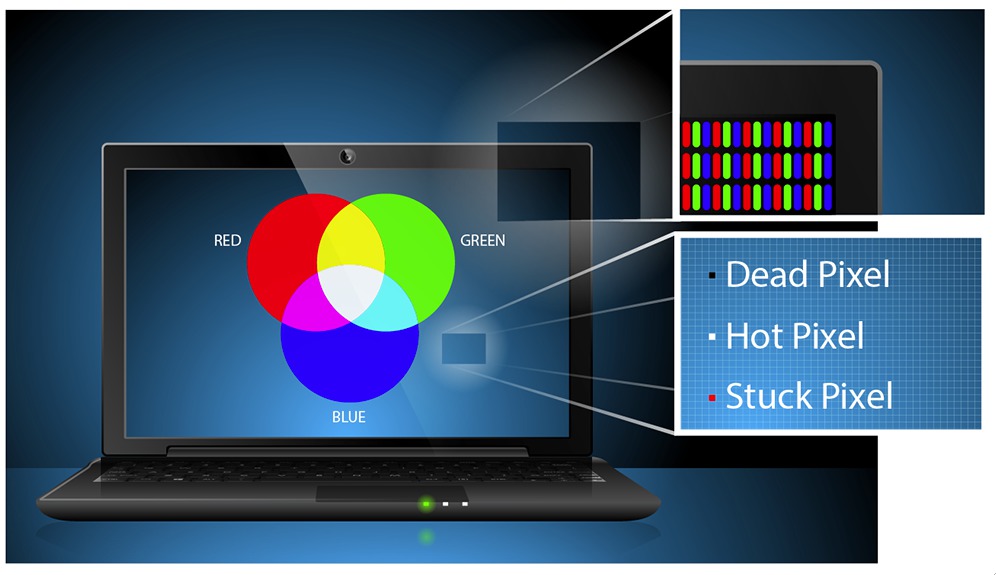
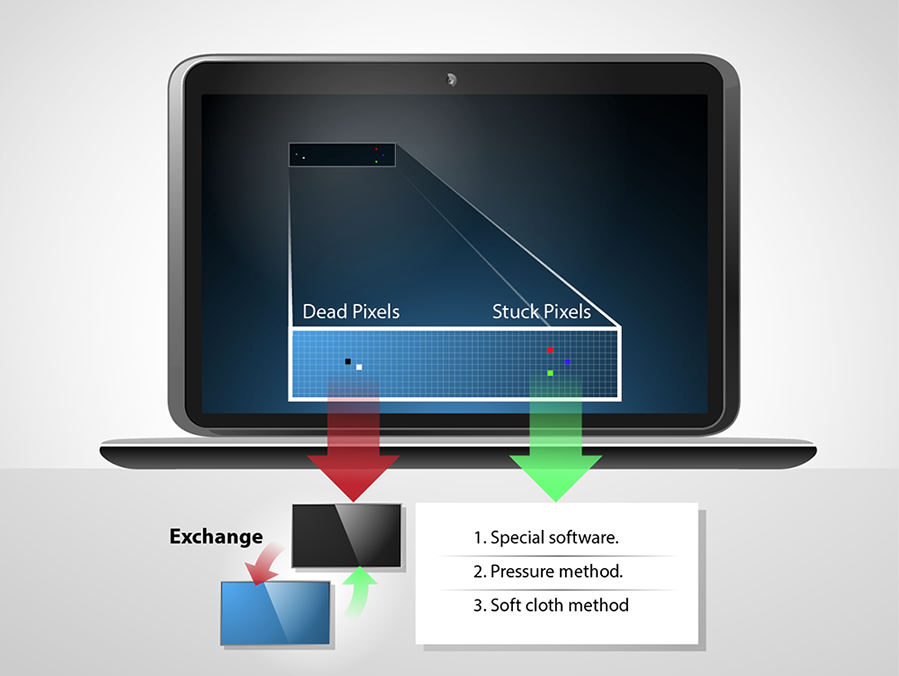
As we described in our previous post, there are 3 types of pixel abnormalities: dead, hot, and stuck. Dead and hot pixels are the ones that always display black or white, while stuck pixels display red/green/blue. You can not get rid of the dead or hot pixels; however, getting rid of a stuck pixel is easier than it seems.

There are several methods for that:

1. Using external software, such as UDPix. Such software flashed bright colours across the display, and calls pixels to do rapid changes. You need to run this program for a couple of hours. There is no warranty on the result, but you don’t really have anything to lose trying it out.

2. Using pressure method. Locate the pixel. Using a narrow object with a blunt and dull end (so you don’t scratch the LCD surface) gently tap the stuck pixel. Don’t tap too hard to start with, but just enough force to see a quick white glow under the point of contact. If you didn’t see a white glow, then you didn’t tap hard enough, so use just slightly more pressure this time. Increase the pressure on the taps gradually for 5-10 taps until the pixel rights itself.

If your tapping did not help, grab a damp (but not wet) washcloth or paper towel. Fold it so that you don’t accidentally tear it, and hold it over the stuck pixel. Apply gentle but consistent pressure with the same object you used for tapping.

3. Using soft cloth method. Put the washcloth in a colander, and dump hot water over the washcloth. Put on protective gloves, or cover your hands with oven mitts. Put the hot washcloth in a plastic sandwich bag, and make sure the seal is completely closed. Move the bag around the pixel a bit in a massage-like motion. The heat generated will cause the liquid crystal to flow more easily into the areas that were not formerly filled.

Just make sure that the bag does not open or rip, otherwise you may be left with the water damage, which is far more dangerous for your computer.
Screen Shot 2014-10-17 at 8.00.05 AM

The RGB colour model is an additive colour model in which red, green, and blue light are added together in various ways to reproduce a broad array of colours. The name is a derivative from composite colours Red, Green, and Blue.

Typical RGB output devices are TV sets, computer and cell phone displays, video projectors, etc.

RGB is a device-dependent colour model: different devices detect or reproduce a given RGB value differently, since the colour elements and their response to the individual Red, Green, and Blue levels vary from manufacturer to manufacturer.

Each pixel (the dots that display the image on your LCD screen) consists of 3 clusters: one red, one green, and one blue. When the image is processed, the colour composition of the pixel changes, thus the image on the LCD changes as a whole.

To form a colour with RGB, three coloured light beams must be superimposed (e.g. emitted from a black screen, or by reflecting from a white screen). Each of the three beams is called a component of that colour, and each of them can have an level of intensity, from completely off to completely on, in the mixture.

The first manufacturer of a truecolor graphic card for PCs (the TARGA) was Truevision in 1987.

Pixel abnormalities.

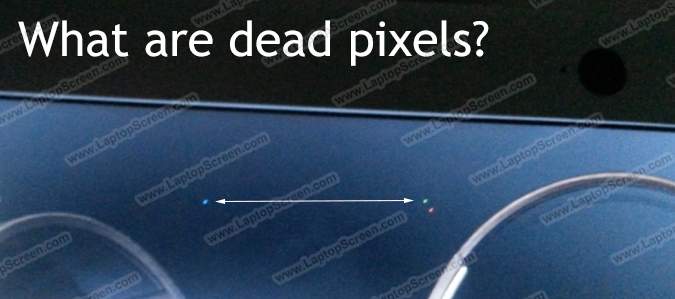
There are two types of abnormal pixels: dead and stuck. The dead pixel is a pixel that displays either only black (called “dead pixel”), or only white (called “hot pixel”).

Dead pixels (always black) are caused by transistors in the electrodes that are stick on either “on” (for TN displays) or “off” (for IPS) position. As such, no light passes through it, causing the pixel to permanently display black.

Hot pixels (always white) are caused by transistors in the electrodes that are stick on either “off” (for TN displays) or “on” (for IPS) position. This allows all light to pass through the RGB layer, thus displaying all white.

Stuck pixels are a whole different story: they are caused by two possible options:

a) either the transistor that is always “on”,

or

b) manufacturing defect, in which the RGB film layer was not cut properly.

Normally, when the transistor is not getting enough power, the light gets through that point onto the RGB layer. This causes the pixel do display permanently in a colour it displayed up to the point, until it had enough power to display.

Because of the nature of their appearance, the dead pixels are not very likely to fix themselves over time. The stuck pixels, however, are reported to disappear through use; and there are several methods of attempting to get rid of them. But that is a topic for a new blog post.

Screen shot 2014-10-03 at 9.27.31 AM

DeadPixelsV2

Dead pixels are defects of LCD production. These can be caused by misalignment, improper cuts or dust particles landing on the LCD matrix during production. Generally LCD panels that leave the factory for installation in laptops or for parts resale have been inspected for dead pixels. Over the years the quality control standards for LCDs have improved a lot, and as technology became more affordable, factories began to dispose of the more obvious defects that would have been shipped to customers just a few years earlier. Still, most LCD manufacturers and laptop vendors allow some amount of pixel defects to exist without it giving a rise to a warranty claim.

Pixel defects can be divided into three sub-categories: Dark pixel, Bright Pixel, or a Dark/Bright Sub Pixel. Each pixel on a typical LCD panel is made up of three sub-pixels: Red, Green and Blue. Pixel defects can happen to an entire pixel (all three sub-pixels affected), or can only affect one or two colors in the sub-pixel.

So what can be wrong with a pixel?
Due a defect a pixel may not “turn on” – meaning it does not pass the light from the backlight, and will remain dark, these are called Dark Pixels. A pixel also may not turn off – meaning the pixel will stay transparent and the light from the backlight will shine through continuously, these are called Bright Dots.
The same can happen to an individual sub-pixel by itself to make for a partial pixel defect. These are not as noticeable because sub-pixels are three times smaller, but if they remain bright, they can still be quite visible and annoying.

What can be done about dead pixels?
Typically dead pixels cannot be fixed, however any “dead” pixel can be a “stuck pixel” that is experiencing problems intermittently. Stuck pixels can appear due to shock, pressure or long periods of electrical inactivity, but unlike dead pixels, stuck pixels are not permanently dead, and can be revived by:
– Running imaging software that circulates color patterns on your screen for a duration of time, which may help nudge the stuck pixels into normal operation.
– Sometimes stuck pixels can be gently massaged into operation, this typically affects Dark dots best – since they are off due to a lack of electrical contact.
– Some methods include applying heat to the LCD surface, we have never seen this method work for us, and we don’t recommend it since it can cause further damage to working pixels near-by.

What does LaptopScreen.com do about dead pixels?
LCD Manufacturers and laptop Vendors maintain pixel policy that allows for a certain number of defects for them to “close their eyes” on the problem and claim it to be fully functional. A typical dead pixel policy allows them up to four Dark Dots in conjunction with no more than two Bright Dots for the LCD panel to be considered defect-free.

Unlike laptop vendors, LaptopScreen.com will exchange any screen if the customer is unhappy with the image of the panel they have received from us. Simply contact our Support Department if needed.

Please note, due to continual improvement of LCD manufacturing process, rising affordability of the technology and because of LaptopScreen.com’s unrelenting negotiations with suppliers, dead pixels are almost extinct. Chance of finding a dead pixel on our screen is very low.